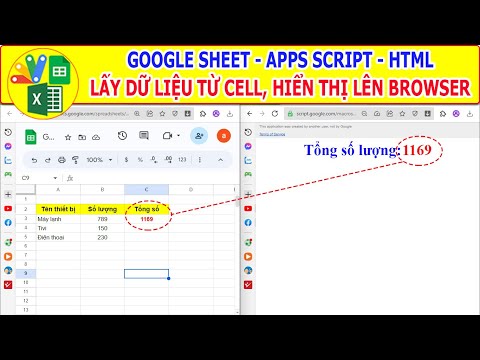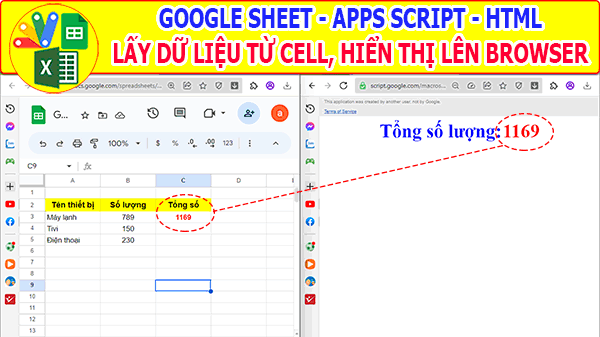
Trong ví dụ này chúng ta sẽ sử dụng một số kiến thức về html, google sheet, apps script để lấy dữ liệu từ Cell Spreadsheet và hiển thị giá trị đó lên trình duyệt web (Browser).
Các bài excel thực hành ứng dụng khác:
- Canva giáo dục miễn phí cho Giáo viên
- Giới thiệu Web Manager – Giải pháp Quản lý Liên kết Tập trung Thông minh
- Tạo form online Hướng dẫn sử dụng Công cụ Load bảng dữ liệu
- TẠO FORM ONLINE – TÙY BIẾN GIAO DIỆN ĐỈNH CAO & XUẤT CODE THÔNG MINH! 🎉
- Bài tập thực hành Msword
- Giới thiệu Ứng dụng Khảo sát và Vẽ đồ thị Hàm số Tự động
- Google sheet Webapp Hệ thống Gửi và Phê duyệt Hỗ trợ file Pdf Xem và đính chữ ký
- Form Builder | Trình tạo form nhập liệu nhanh chóng – Bản V1
- Appscript Webapp | Kéo thả các Items theo 2 chiều Dọc – Ngang, Ứng dụng sắp xếp chu trình công việc
- GOOGLE SHEET WEBAPP TRA CỨU 34 TỈNH THÀNH VIỆT NAM MỚI NHẤT (SÁP NHẬP 2025)
Mã trong file Code.gs
function doGet(e){
  return HtmlService.createHtmlOutputFromFile("index.html");
}

function getDatacell() {
  var sw=SpreadsheetApp.getActiveSpreadsheet();
  var ss=sw.getActiveSheet();
  let dataCell = ss.getRange("C3").getValue();
  let display="<span>" +dataCell+ "</span>";
  return display;
}
Mã trong file index.html
<!DOCTYPE html>
<html>
  <head>
    <base target="_top">
    <title>Lấy dữ liệu từ Cell của Spreadsheet, hiển thị lên Browser</title>
  </head>
  <body >

    <table align="center">
      <tr>
        <td style="color: blue; font-size:3em; font-weight:bold;">Tổng số lượng: </td>
        <td style="text-align:c enter; color: red; font-size:3em; font-weight:bold;" id="result">ds</td>
      </tr>
    </table>

    <script>
      let loading = "Đang lấy dữ liệu...";
      document.querySelector('#result').innerHTML=loading;

      function onSuccess(response){
        let result = "<span>"+response+"</span>";
        document.querySelector('#result').innerHTML=result;
      }

    google.script.run.withSuccessHandler(onSuccess)
                      .getDatacell();
    </script>

  </body>
</html>
Video hướng dẫn thực hiện