


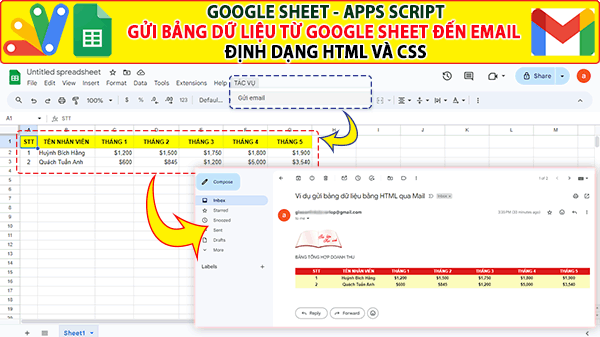
Trong project google sheet này, mình chia sẻ đến các bạn cách chúng ta sử dụng apps script để viết hàm thực thi gửi email. Nội dung email là trang html và định dạng bằng css. Bảng dữ liệu được lấy từ google sheet. Bạn có thể gửi bảng dữ liệu của bất cứ sheetactive nào. Dưới đây là code và video demo.
Các project excell khác:
- Giới thiệu Web Manager – Giải pháp Quản lý Liên kết Tập trung Thông minh
- Tạo form online Hướng dẫn sử dụng Công cụ Load bảng dữ liệu
- TẠO FORM ONLINE – TÙY BIẾN GIAO DIỆN ĐỈNH CAO & XUẤT CODE THÔNG MINH! 🎉
- Bài tập thực hành Msword
- Giới thiệu Ứng dụng Khảo sát và Vẽ đồ thị Hàm số Tự động
- Google sheet Webapp Hệ thống Gửi và Phê duyệt Hỗ trợ file Pdf Xem và đính chữ ký
- Form Builder | Trình tạo form nhập liệu nhanh chóng – Bản V1
- Appscript Webapp | Kéo thả các Items theo 2 chiều Dọc – Ngang, Ứng dụng sắp xếp chu trình công việc
- GOOGLE SHEET WEBAPP TRA CỨU 34 TỈNH THÀNH VIỆT NAM MỚI NHẤT (SÁP NHẬP 2025)
- Quản Lý Tài Chính Cá Nhân Hiệu Quả Với Web App Google Apps Script
Code trang “code.gs”
function onOpen(){
  let ui=SpreadsheetApp.getUi()
  ui.createMenu("TÁC VỤ")
  .addItem("Gửi email","myFunction")
  .addToUi();
}

function myFunction() {
  // connect to html template
  var html = HtmlService.createTemplateFromFile('email');

  // make data collection available to html files
  html.dataCollect = dataCollector(0);

  // connect to // connect to the template so that we can send it in email
  var emailConnect = html.evaluate().getContent();

  // send email
  GmailApp.sendEmail(
    ["giaoanlinkdeverlop@gmail.com"],
    "Ví dụ gửi bảng dữ liệu bằng HTML qua Mail",
    "Bảng dữ liệu được gửi kèm!",
    {htmlBody: emailConnect}
  )
}
Code trang “email.html”
<!DOCTYPE html>
<html>
  <head>
  <base target="_top">
  <?!= HtmlService.createHtmlOutputFromFile('css').getContent(); ?>
  </head>
  <body>
    <p><a href="https://giaoan.link" target="_blank"><img src="https://giaoan.link/wp-content/uploads/2021/10/logo-giaoan-2021v2.gif"/></a></p>
    <p style="font-weight: bold;">BẢNG TỔNG HỢP DOANH THU</p>
    <table>
      <thead>
        <tr>
          <th><?= dataCollect[0][0]?></th >
          <th><?= dataCollect[0][1]?></th >
          <th><?= dataCollect[0][2]?></th >
          <th><?= dataCollect[0][3]?></th >
          <th><?= dataCollect[0][4]?></th >
          <th><?= dataCollect[0][5]?></th >
          <th><?= dataCollect[0][6]?></th >
        </tr>
      </thead>

    <tbody>
    <? for (var i = 1; i < dataCollect.length; i++){ ?>
      <tr>
            <th><?= dataCollect[i][0]?></th >
            <th><?= dataCollect[i][1]?></th >
            <th><?= dataCollect[i][2]?></th >
            <th><?= dataCollect[i][3]?></th >
            <th><?= dataCollect[i][4]?></th >
            <th><?= dataCollect[i][5]?></th >
            <th><?= dataCollect[i][6]?></th >

        </tr>

    <?}?>
    </tbody>
    </table>
  <p style="color:blue; font-style: italic">Cám ơn về sự nổ lực của các bạn!!</p>
  </body>
</html>
Code trang “css.html”
<style>
  table{
    border-collapse: collapse;
    border-radius: 15px;
    margin: 25px 0;
    font-family: sans-serif;
    box-shadow: 0 0 20px rgba(0, 0, 0, 0.15);
    width: 100%;
    text-align: center;
    table-layout: fixed;
  }

  thead tr{
    background-color: #dd1818;
    color: #ffffff;
    padding: 12px 15px;
  }
  tbody tr{
    background-color: #fffebe;
    color: #000000;
    padding: 12px 15px;
  }

</style>
Code trang “function: dataCollector”
function dataCollector(){

//access the workbook
var wb = SpreadsheetApp.getActiveSpreadsheet();

//access the active sheet
var dataSheet= wb.getActiveSheet();

// access the data range
var dataRange = dataSheet.getRange(1, 1, dataSheet.getLastRow(), dataSheet.getLastColumn()).getDisplayValues();

// return statement
return dataRange;
}
Video hướng dẫn
